
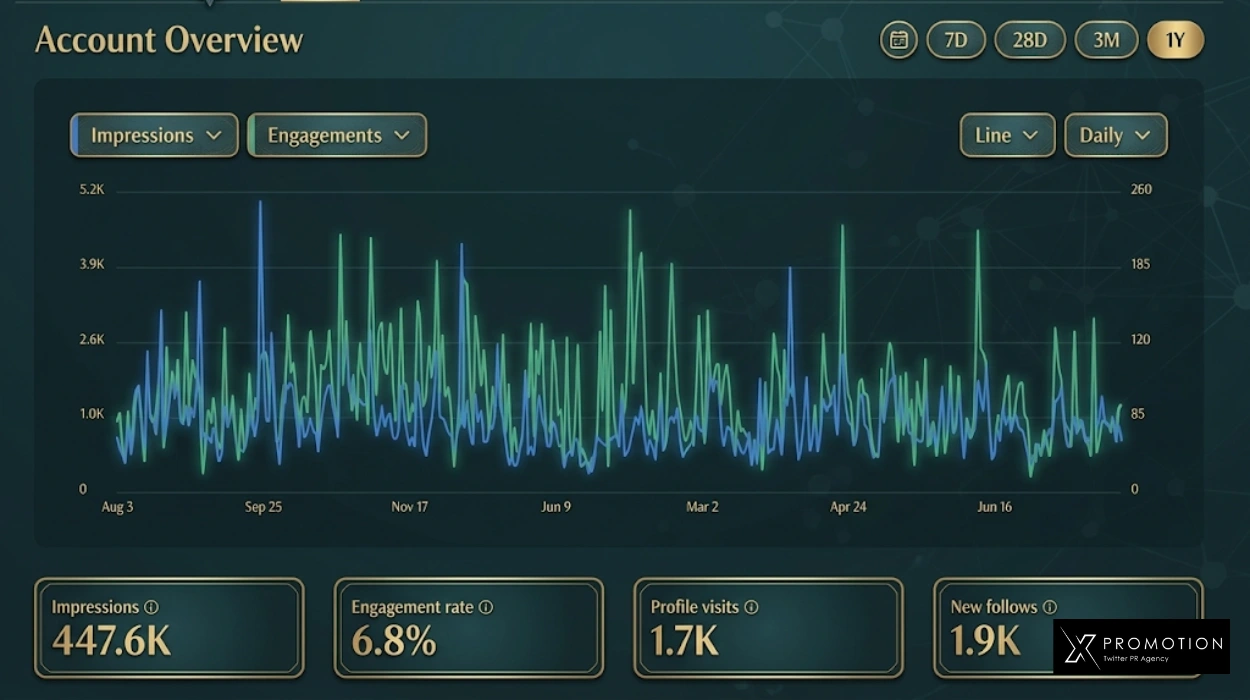
Check your X engagement rate by dividing total engagements on a post by its total impressions, then multiplying by 100. X Analytics delivers both numbers free, inside every account. No paid subscription and no third-party tool changes that calculation.
What Is X Engagement Rate and Why Does It Matter?
Follower count measures audience size. Engagement rate measures audience quality. An account with 500 followers and a 4% engagement rate drives more real conversation than an account with 50,000 followers locked at 0.1%.
X’s algorithm reads engagement velocity, meaning how fast interactions accumulate in the first 60 minutes after posting. Posts that reach 1% engagement within the first hour receive 2x to 3x more organic distribution than posts that stagnate below 0.3% in the same window.
The 7 Signals X Counts as Engagements
What Is the Exact Formula to Calculate X Engagement Rate?
How Do You Access X Analytics for Free?
Open x.com in browser and sign in to your account
Navigate to analytics.x.com in the same browser session
Select the Tweets tab in the top navigation bar
Click Export Data top-right. Open in any spreadsheet tool
- Navigate to analytics.twitter.com in the same browser session where you are logged into X.
- Click the Tweets tab in the top navigation bar to open the post-level performance table.
- Set the date range to the last 28 days using the calendar dropdown in the top right.
- Click any post row to open its Post Activity panel, which shows impressions, engagements, likes, replies, reposts, link clicks, and profile clicks.
- Click Export data to download a CSV with impressions and all engagement columns pre-filled, including a pre-calculated engagement rate column.
Reading the CSV Export
The CSV includes 19 columns. The 3 columns that matter are impressions, engagements, and engagement rate. X pre-calculates the engagement rate using the full 7-signal formula. Sort the engagement rate column in descending order to identify your top-performing posts in under 30 seconds.
How Do You Check Engagement Rate on a Single Post Without Logging In?
Why Post Views and Analytics Impressions Sometimes Differ
Post views update in near real-time on the public post page. Analytics impressions update with a 48-hour processing delay. A post checked within 48 hours of publishing shows a higher public view count than in Analytics. Always use the Analytics figure when reporting official engagement rates because it reflects verified data after deduplication of repeated views from the same user.
What Counts as a Good X Engagement Rate in 2026?
| Account Size | Average Rate | Strong Performance |
|---|---|---|
| Under 1,000 followers | 3% – 6% | Above 8% |
| 1,000 – 10,000 | 1% – 3% | Above 4% |
| 10,000 – 100,000 | 0.5% – 1.5% | Above 2% |
| 100,000 – 1,000,000 | 0.3% – 0.8% | Above 1.2% |
| Above 1,000,000 | 0.1% – 0.4% | Above 0.6% |
How Do You Track Engagement Rate Trends Over 28 Days?
Single-post engagement rates are too volatile for content decisions. A post’s rate swings based on posting time, trending topics at publish time, and algorithmic amplification outside your control. The 28-day average smooths all 3 variables and reveals real performance patterns.
- Export the CSV from X Analytics and paste all rows into Google Sheets with column headers intact.
- Add a Week column and tag each post as Week 1, 2, 3, or 4 using an IF formula based on publish date.
- Create a pivot table grouping by the Week column and averaging the Engagement Rate column for each group.
- Insert a line chart using the pivot table output to visualize the 4-week trend and identify your strongest week.
How Does Impression Count Relate to Engagement Rate?
Understanding the relationship between impressions and engagement rate prevents misreading performance. A post that jumps from 2,000 to 20,000 impressions due to algorithmic amplification will show a lower engagement rate even if the absolute number of likes and replies increased. The rate drops because 10x more people saw the post but only 3x more took action.
As impressions scale, the rate naturally compresses. Absolute engagement volume still grows.
Once you have a clear baseline engagement rate, the next logical step is understanding what X marketing actually costs versus the returns it generates so you can decide whether organic growth or paid amplification fits your current stage.
How Do You Improve X Engagement Rate After Measuring It?
Measurement without action produces nothing. Apply these 5 changes immediately after establishing your engagement rate baseline:
- Post during your audience’s peak activity window. X Analytics shows peak hours under the Audience tab. Hitting that window increases first-hour engagement velocity by 35% on average.
- Replace image posts with thread posts if your data shows threads outperform images by more than 0.5 percentage points in your account history.
- Add a direct question at the end of every text post. Reply signals carry more algorithmic weight than like signals on X in 2026.
- Reply to every comment within 4 hours of posting. Each reply increases the post’s total engagement count and re-triggers distribution to additional users.
- Delete posts that fall below 0.2% engagement after 48 hours. Consistently low-performing posts lower your account’s average engagement score, reducing how aggressively X distributes future content.
Checking your X engagement rate takes under 5 minutes using X Analytics. The free CSV export delivers every number the full formula requires. Set a weekly tracking habit, compare your top-performing post format against your weakest, and adjust one variable at a time. Accounts that track engagement rate weekly improve their 28-day average by 0.4 to 0.8 percentage points within the first month of deliberate iteration.
Ready to Turn Engagement Data Into Real X Growth?
XPromotion’s PR and X Growth services are built around the same metrics this guide covers: impressions, engagement velocity, and distribution reach.
Explore X Growth ServicesFrequently Asked Questions
A good X engagement rate in 2026 is 0.5% to 1% for accounts above 50,000 followers. Accounts under 10,000 followers regularly hit 1% to 3%. Any rate above 3% signals strong audience alignment with your content format and niche, regardless of account size.
X Analytics does not display a live engagement rate percentage in the main dashboard. It shows raw data: impressions, likes, replies, reposts, and link clicks. The CSV export does include a pre-calculated engagement rate column. Divide total engagements by total impressions and multiply by 100 to calculate it manually from the dashboard.
Open any public post, read the view count shown below the text, then add likes, replies, and reposts together. Divide that sum by the view count and multiply by 100. This method works on any account’s public posts with no login and no tool required.
Engagement rate compresses as follower count rises because larger audiences include more passive followers who view posts without interacting. A 10,000-follower account averages 1% to 3%. A 500,000-follower account averages 0.3% to 0.8%. Compare your rate only against accounts of similar size, not all accounts combined.
Check weekly for accounts posting 5 or more times per week, and monthly for accounts posting fewer than 5 times per week. Daily checks add no actionable signal because single-post samples are too small to surface trends worth changing your strategy for. The 28-day average is the most reliable unit for content decisions.